
In short: On a product discount, click Add sale item rule to choose how sale items are discounted: from their sale price (the default), from their compare-at price, or not at all. To leave out subscription items, click Add exclusions and tick Exclude subscription items.
A sale item is any item whose compare-at price is higher than its price.
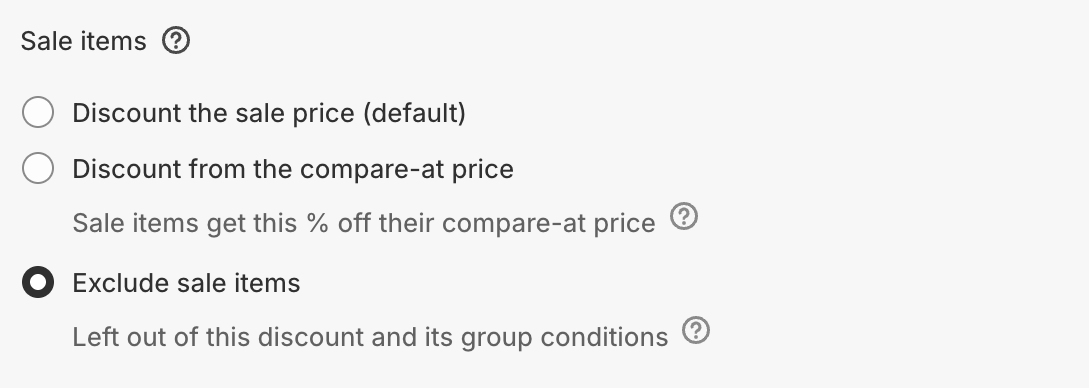
Choose how sale items are discounted
Open the product discount type and click Add sale item rule.
Choose one:
Discount the sale price (default): the discount comes off the current price, the same as with no rule.
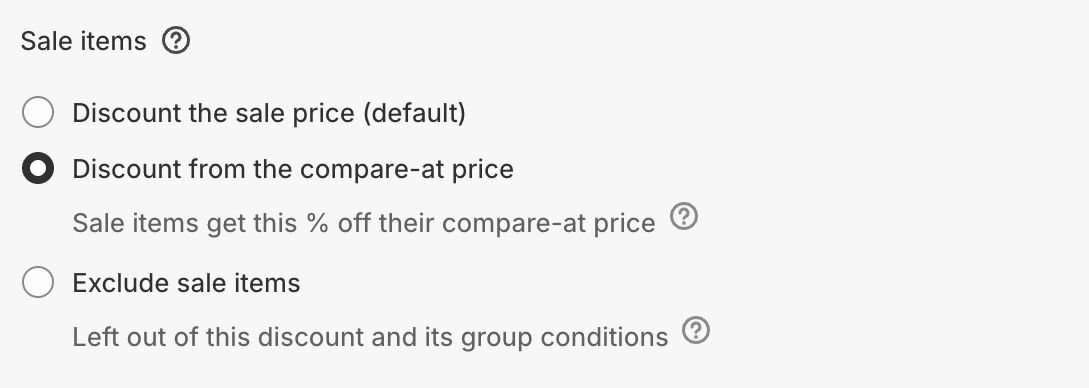
Discount from the compare-at price: sale items get the percentage off their compare-at price. Only available for Percentage discounts.
Exclude sale items: sale items are left out of this discount and its Group conditions.
To remove the rule, click the red trash icon next to Sale items.
Discount from the compare-at price
Use this when you run a sale with compare-at prices and a code should give its full percentage off the original price, instead of adding it on top of the sale price.
With 20% off:
An item reduced from $100 to $85 ends at $80.
An item already reduced further, from $100 to $70, stays at $70.
An item with no compare-at price gets 20% off its price, as normal.
Checkout shows the discount as "20% OFF" (or your discount title), but the saving is the difference from the sale price: $5 on the $85 item. If every item in the cart is already reduced further, the code gives nothing off, so checkout may say it can't be applied.
Exclude subscription items
Open the product discount type and click Add exclusions.
Tick Exclude subscription items to skip items bought with a Shopify purchase option: subscriptions, and preorders from apps that use purchase options, such as STOQ.
To remove it, click the red trash icon next to Exclusions.

What "excluded" means
An excluded item, whether from Exclude sale items or Exclude subscription items, is treated as if it isn't part of this discount:
It doesn't get this discount.
It doesn't count toward this discount type's Group Subtotal, Group Total, Group Quantity or quantity limit.
It does still count toward cart-wide conditions: Cart Subtotal, Cart Total and Cart Quantity look at the whole cart.
Worked example: sale items count toward the tier but aren't discounted
You want "buy 3, get 15% off", where sale items help reach 3 items but don't get the 15%.
Add Cart Quantity greater than or equal to
3as a Per-Discount Condition. Cart Quantity counts every item, including sale items.Click Add sale item rule and choose Exclude sale items.
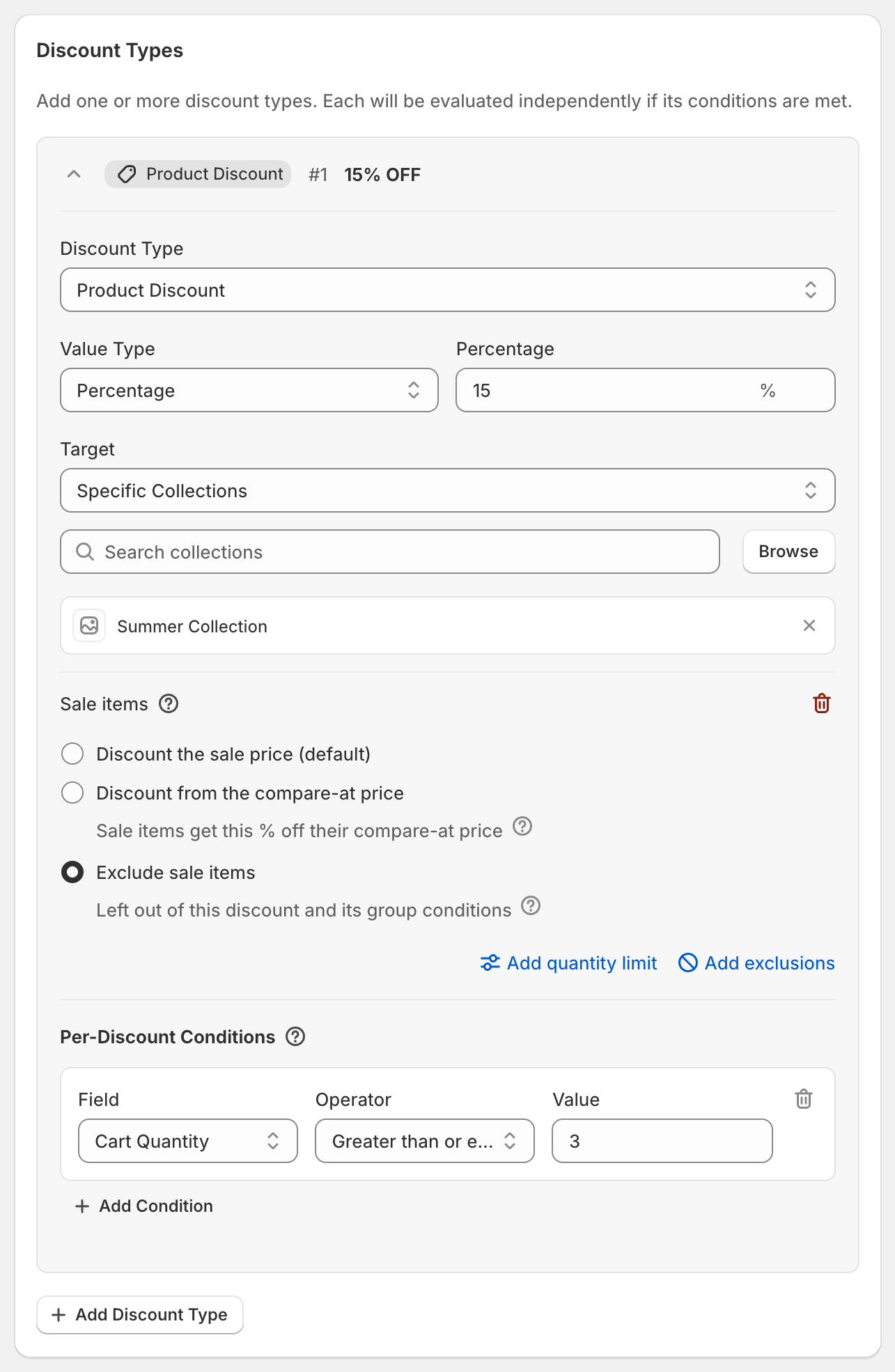
A customer buys two full-price items and one sale item. Cart Quantity is 3, so the discount applies, and only the two full-price items get 15% off.
If you used Group Quantity instead, the sale item wouldn't count and the customer would only have 2.
Good to know
Sale item rules and exclusions are per discount type. Each product discount type in the same code can treat sale and subscription items differently.
Subscription and preorder items follow the same sale rules as everything else: if their compare-at price is higher than their price, they're on sale. If your subscription app shows the one-time price as the compare-at price, subscriptions count as on sale too. To handle them separately, use Exclude subscription items, or split the discount with the condition Item has subscription.
Sale item rules and exclusions are only available on product discounts.
Discount from the compare-at price isn't available for Fixed Amount discounts. A fixed amount always comes off the current price.
You can't exclude a specific product or collection. Target only the collections you want discounted instead.