
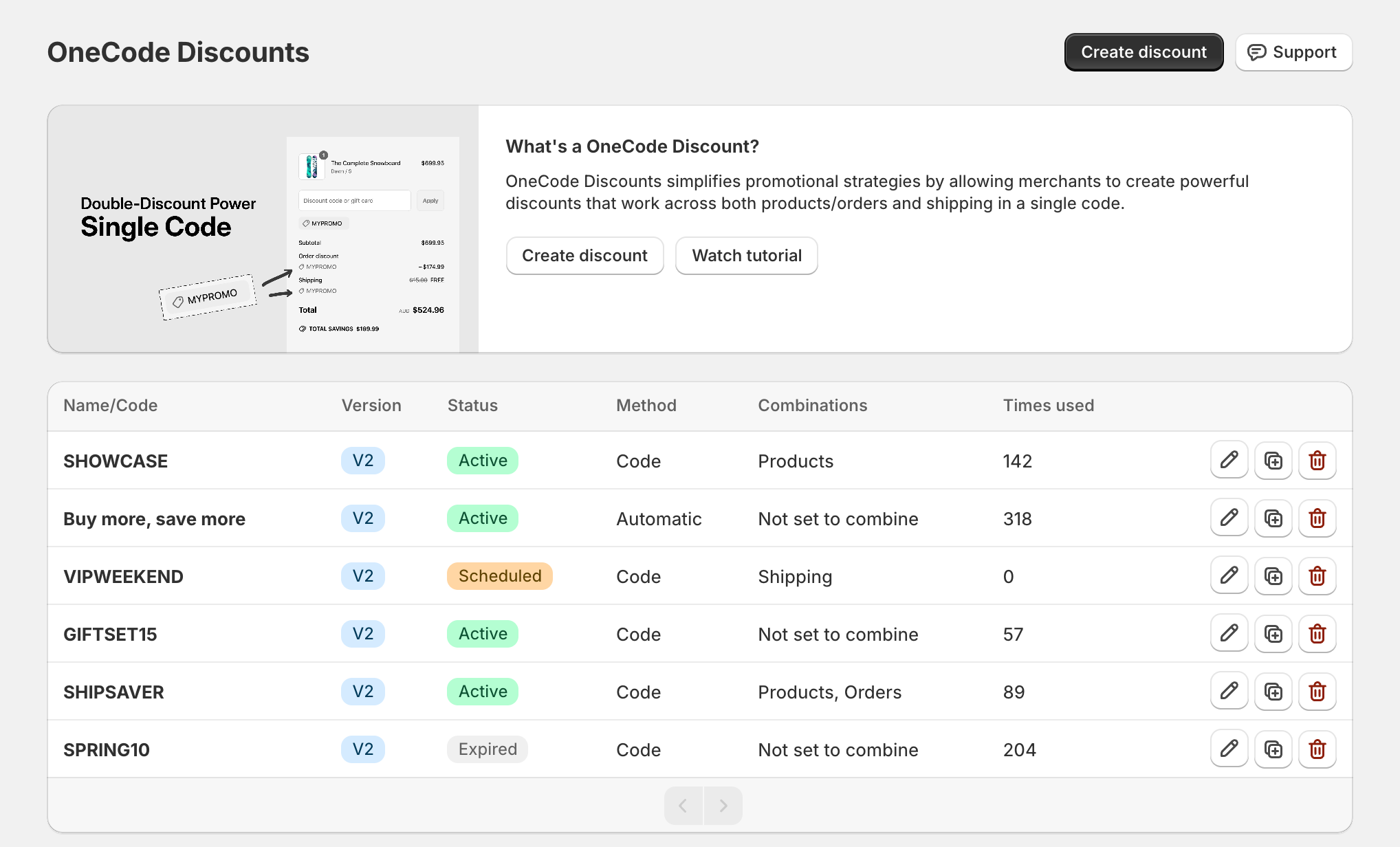
In short: The OneCode home page lists every OneCode discount with its status, method, combinations and Times used. Click a discount's name or pencil icon to edit it, the copy icon to duplicate it, or the trash icon to delete it.
The discount list
Each row shows:
Name/Code: the code, or the title for automatic discounts.
Version: which version of the OneCode builder made it. New discounts show V2. There's nothing you need to do with it.
Status: Active, Scheduled (starts in the future) or Expired (end date passed). Deactivating a discount in Shopify sets its end date to now, so deactivated discounts show as Expired.
Method: Code or Automatic.
Combinations: which other kinds of discounts it combines with, or "Not set to combine".
Times used: how many orders have used it. For a discount with bulk codes, the total across all codes. Shopify can take a few minutes to update it.
The list shows 10 discounts per page. Use the arrows at the bottom to see more.
Edit a discount
Click the discount's name or the pencil icon on its row.
Make your changes. A save bar appears at the top of the screen.
Click Save in the save bar. Or click Discard to undo your changes. After saving you're taken back to the home page.
Changes take effect at checkout as soon as you save. You can change everything except the method (code or automatic).
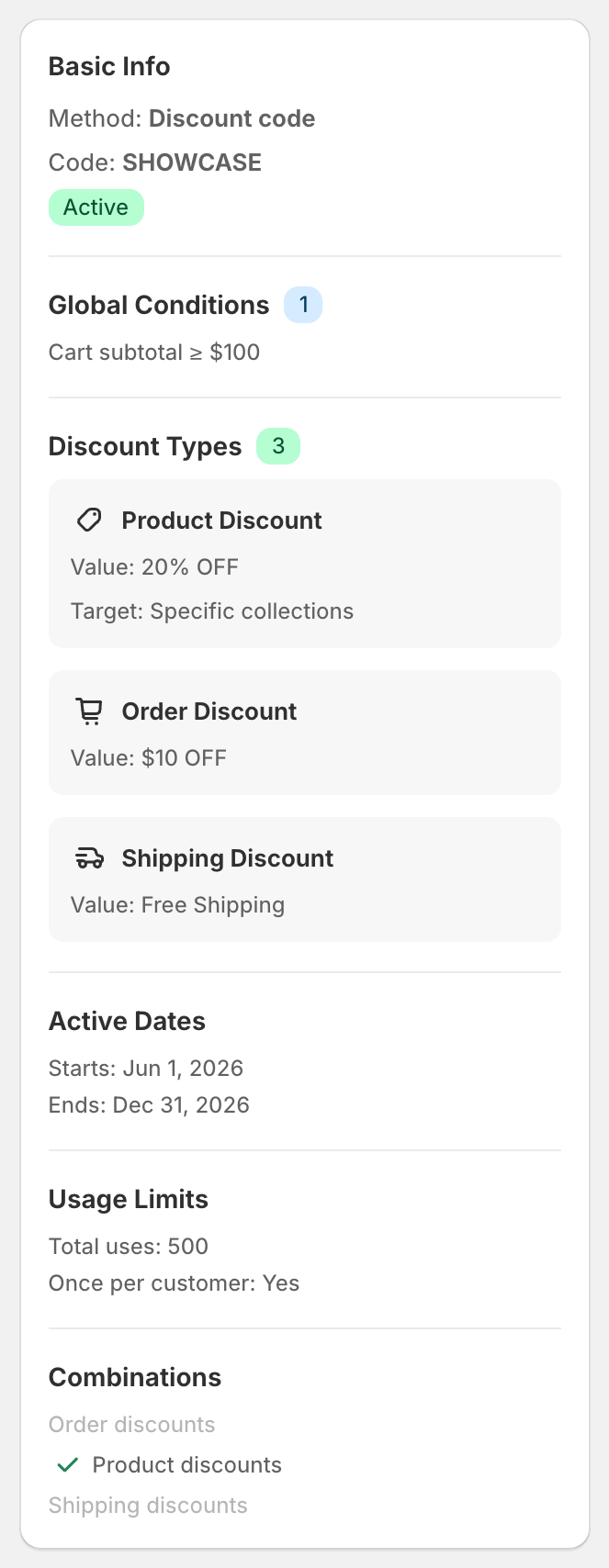
The summary on the right of the edit page shows the whole discount at a glance:
Duplicate a discount
Click the copy icon on the discount's row, then Duplicate.
A new discount opens with the same settings. Its code ends in -COPY, or its title ends in copy for automatic discounts.
Change the code or title, check the settings, then click Save.
The copy isn't saved until you click Save, and it goes live as soon as you do unless you change its active dates. It starts with no uses, and bulk codes aren't copied.
Delete a discount
Click the trash icon on the discount's row.
Confirm with Delete.
Deleting can't be undone. The code stops working straight away. Deleting a discount also deletes its bulk codes.
Things you can do in Shopify's Discounts page
OneCode discounts also appear in your Shopify admin under Discounts. There you can see them next to your other discounts and deactivate them.
Good to know
To pause a discount, set an end date. See Schedule a discount with start and end dates.
If you uninstall OneCode: Stackable Discounts, your OneCode discounts stop working at checkout. If you reinstall later, check your discounts on the OneCode home page and test one before relying on them.