In short: The Combinations card decides whether this OneCode discount can be used together with your other discounts. Tick Product discounts, Order discounts and Shipping discounts to allow each. The discount types inside one OneCode discount always work together and don't need this setting.
Set it up
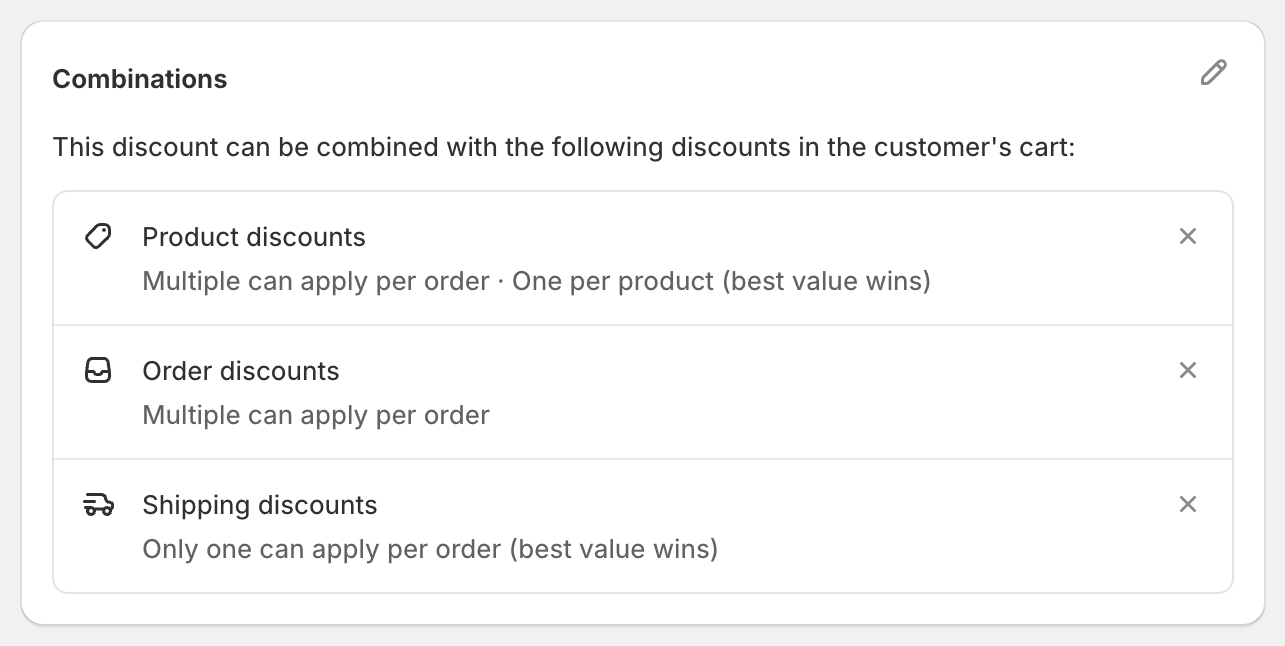
In the Combinations card, click the pencil icon.
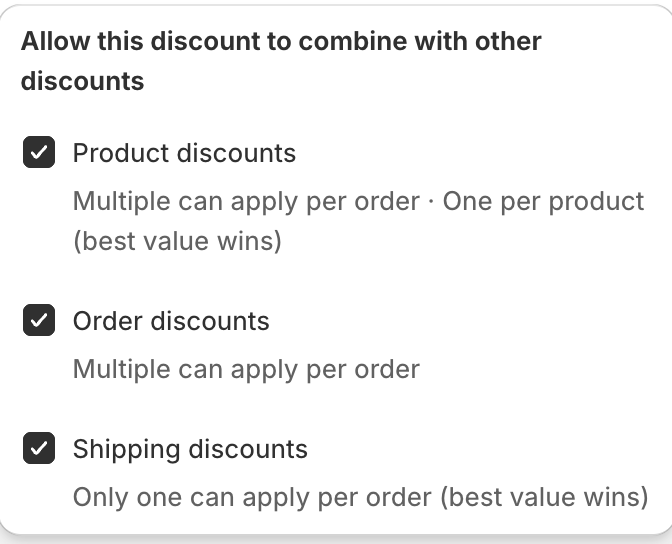
Under Allow this discount to combine with other discounts, tick the kinds of discounts it may be used with.
To remove one quickly, click the X on its row.
New OneCode discounts combine with all three by default.
What each option means
These follow Shopify's own combination rules, and apply between separate discounts:
Product discounts: "Multiple can apply per order · One per product (best value wins)". Your other product discounts can be used in the same order, but each item only gets one product discount, whichever saves the most.
Order discounts: "Multiple can apply per order". Separate order discounts can be added together. (Inside one OneCode code, only its biggest order discount type is used.)
Shipping discounts: "Only one can apply per order (best value wins)".
Both discounts have to agree
Shopify only combines two discounts if both allow it:
On the OneCode discount, tick the kind of discount the other one is.
On the other discount, tick the kinds of discount your OneCode code contains. A code with a product discount type and free shipping counts as both a product discount and a shipping discount.
Example: your OneCode code has a product discount type, and you also have a separate 10% order discount. Tick Order discounts on the OneCode code, and Product discounts on the 10% order discount in Shopify's Discounts page. If either is missing, the customer can't use both.
Worked example: an influencer code on top of a sitewide sale
You run an automatic 10% sitewide sale (a product discount) and give influencers the OneCode code CREATOR15 with 15% off.
If both allow combining with product discounts, each item still only gets one product discount: 15%, the better one. They don't add up to 25%.
To give the influencer code a different kind of saving that does stack, make CREATOR15 an Order Discount or a Shipping Discount, and allow both discounts to combine.
Shopify Plus: more than one product discount on the same item
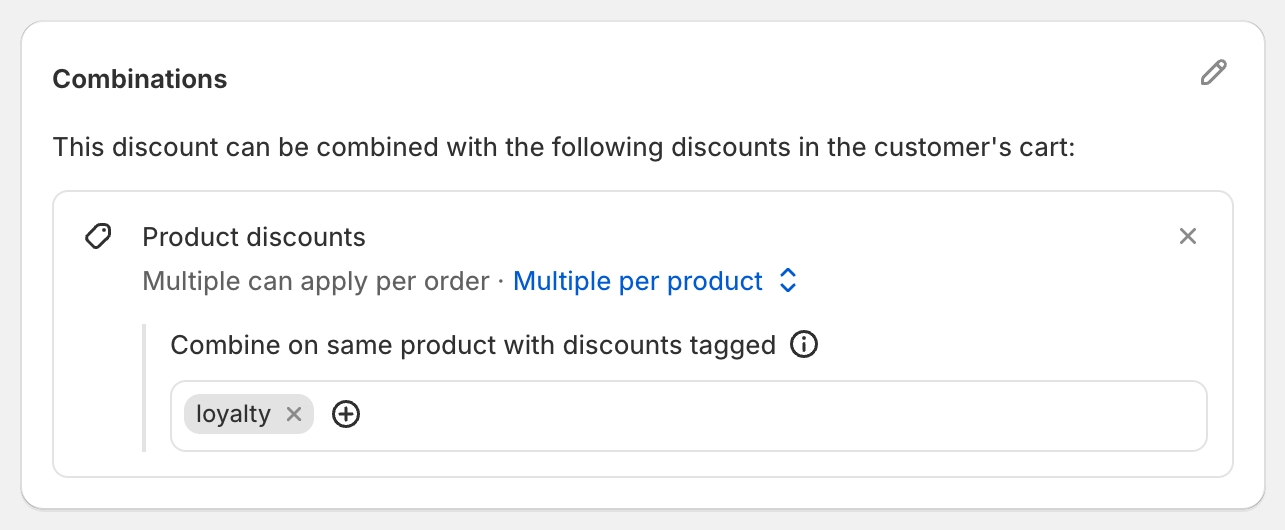
On Shopify Plus stores, a discount with a product discount type gets an extra choice under Product discounts. Click One per product (best value wins) to switch it to Multiple per product. Then:
Under Combine on same product with discounts tagged, add the tags of the other discounts this one may stack with.
Give each discount a tag in the Tags card on the right. Every discount that should stack has to be tagged, and set to combine with the tags of the others.
Good to know
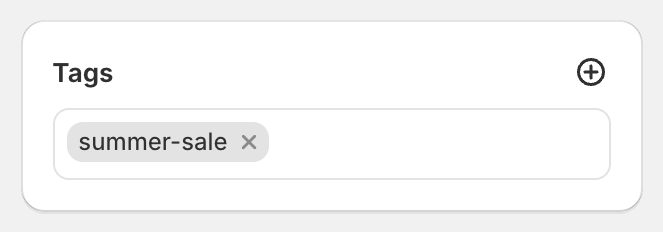
The Tags card is on every plan. It labels this discount so other discounts can refer to it. On its own it doesn't change how the discount works.
Customers can enter more than one code at checkout when the codes are allowed to combine.