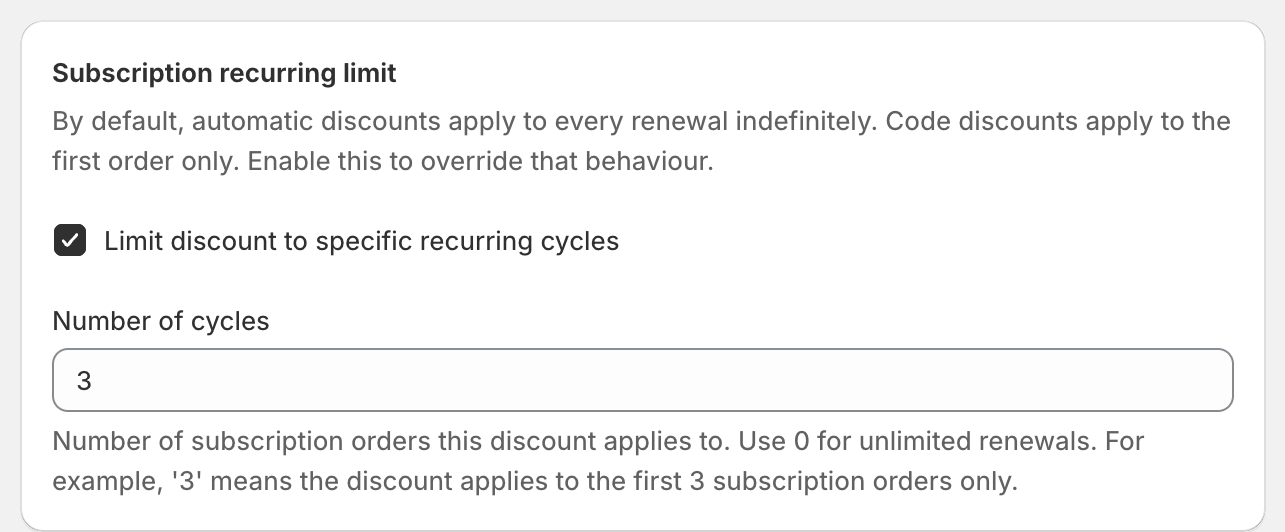
In short: By default, automatic discounts apply to every subscription renewal and codes apply to the first order only. To change this, tick Limit discount to specific recurring cycles and enter the Number of cycles.
Set the number of renewals
In Subscription recurring limit, tick Limit discount to specific recurring cycles.
In Number of cycles, enter how many subscription orders get the discount:
3: the first 3 subscription orders, counting the first order.1: the first order only.0: every renewal, with no limit.
Save the discount.
Worked example
Code WELCOME20 gives 20% off, with Number of cycles 3. A customer subscribes to monthly coffee with the code. Their first three orders are 20% off. From the fourth order they pay full price.
Include or exclude subscription items
To stop a product discount applying to subscriptions, click Add exclusions and tick Exclude subscription items. See Sale items and subscription items.

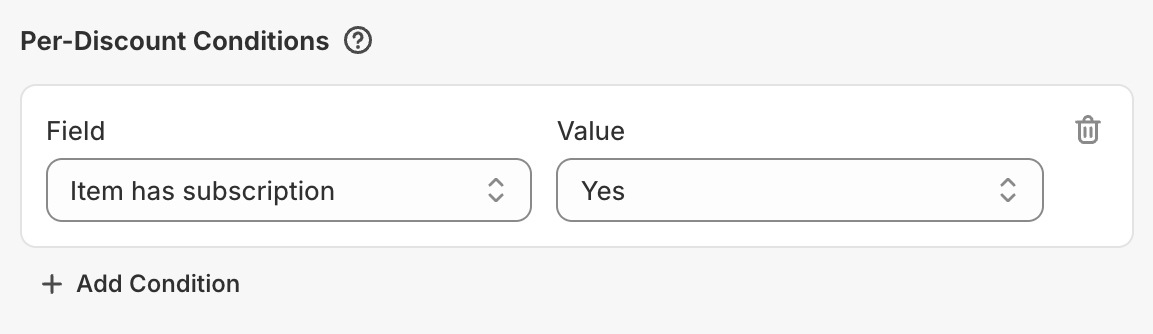
To discount only subscription items, so one-time purchases don't get the discount, add the Per-Discount Condition Item has subscription with Value set to Yes. See Group and Included Items conditions.
Good to know
Subscriptions need a Shopify subscription app. OneCode: Stackable Discounts works with the subscription orders that app creates.
Preorders sold with a Shopify purchase option, for example by STOQ, count as subscription items for Exclude subscription items and Item has subscription.
If you leave the box unticked, Shopify's default applies: automatic discounts apply to every renewal, codes only to the first order.
A subscription with many payments counts as one use toward Maximum discount uses.