
In short: On a product discount, click Add quantity limit and enter a number. Only that many items get the discount. Choose Cheapest items first or Most expensive items first to decide which ones.
Set it up
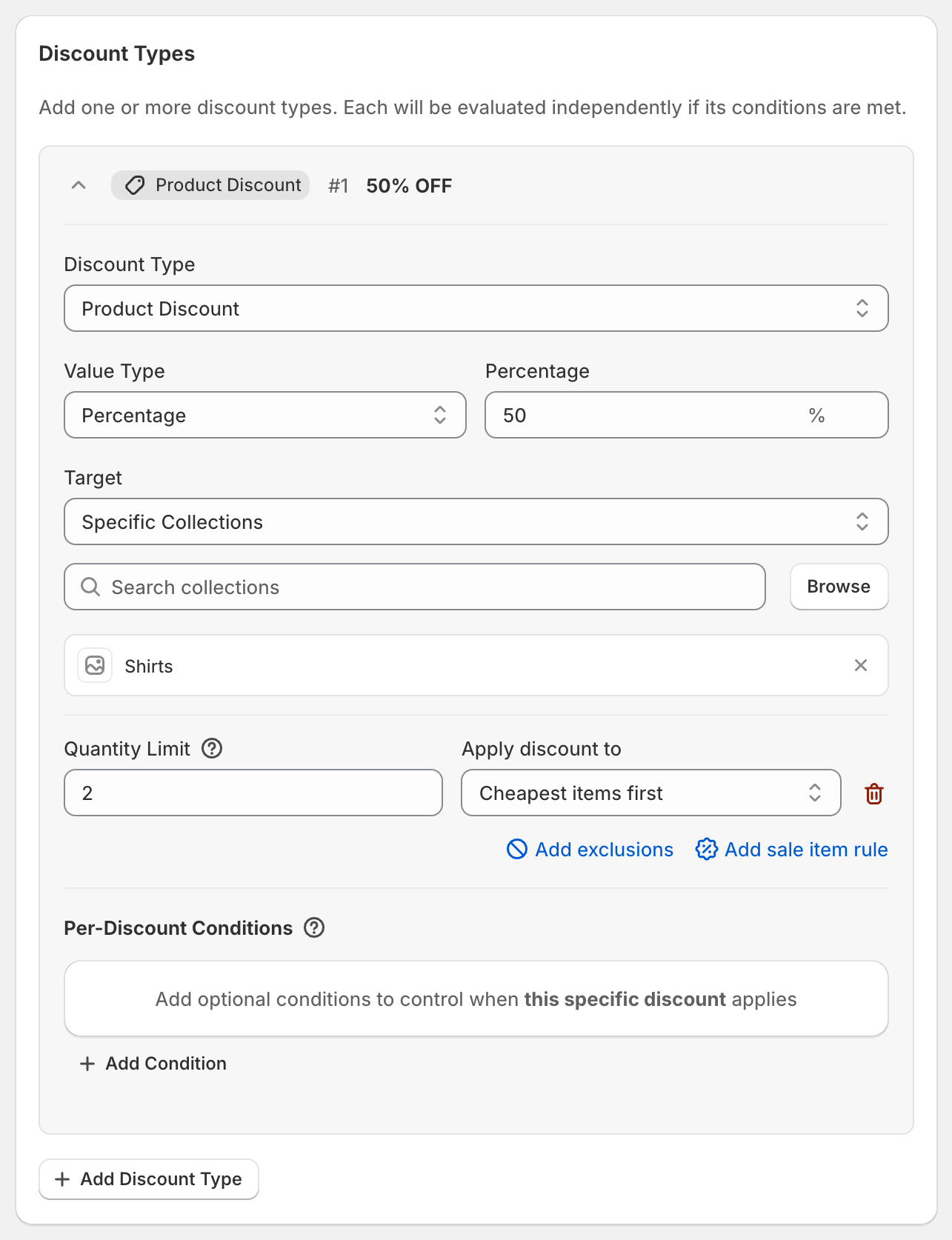
Open the product discount type and click Add quantity limit.
Type the maximum number of items in Quantity Limit, for example
2.In Apply discount to, choose:
Cheapest items first: the lowest-priced items get the discount. This is the default.
Most expensive items first: the highest-priced items get the discount.
To remove the limit, click the red trash icon next to it.
Worked example
50% off the Shirts collection, limited to 2 items, cheapest first. A customer buys shirts at $40, $30 and $25:
The $25 and $30 shirts get 50% off: $27.50 saved.
The $40 shirt is full price.
The limit counts individual items, not products. Three of the same $25 shirt with a limit of 2 means two are discounted and one is full price.
Good to know
Apply discount to only appears when there's a choice to make: when the target is All Products or Specific Collections, or more than one specific product.
The limit is per order, for this discount type only.
Items left out by Exclude sale items or Exclude subscription items don't count toward the limit.